Hannon Brett | Published on: June 15, 2026 | Time to read: 32 min | Last Updated on: June 15, 2026
Google AI Studio is a free, browser-based tool for building and testing prompts with Google's Gemini models without any setup or infrastructure required. It serves as an accessible entry point for developers, students, and researchers to prototype AI applications quickly, with the option to export code and scale to production via Vertex AI.
Key Takeaways
- Google AI Studio is completely free and requires only a Google account, with no cloud setup, credit card, or complex infrastructure needed
- The tool offers three prompt types (Freeform, Structured, and Chat) plus model tuning controls (Temperature, Top-P, Top-K, Safety settings) to customize AI behavior
- You can export working code in Python, JavaScript, or cURL directly from the interface after refining your prompt
- Gemini models vary by capability and speed. Flash models are optimized for speed on the free tier, while Pro models handle complex reasoning tasks
- AI Studio is designed for rapid prototyping and experimentation. For production apps at scale, you transition to Vertex AI with enterprise features like security, monitoring, and guaranteed throughput
- Advanced techniques like Few-Shot Prompting, Chain-of-Thought reasoning, and System Instructions significantly improve output consistency and quality
- Data from unpaid AI Studio usage may be used by Google to improve products, but activating Cloud Billing switches you to a Paid Service where prompts are never used for training
Google AI Studio: Quick Answers
What is Google AI Studio?
Google AI Studio is a free, browser-based tool for building and testing prompts with Google's Gemini models. You sign in with a Google account and start experimenting right away. It's the accessible entry point to the Gemini API, and you can export the code you build and scale it to production on Vertex AI later.
Who is Google AI Studio for?
It's built for developers, students, and researchers who want a fast path to the Gemini API without standing up infrastructure first. Product managers use it too, to test ideas and generate drafts without waiting on engineering support. Anyone with a Google account can open it and run a prompt.
What can you build with Google AI Studio?
You build and refine prompts, then export working code in Python, JavaScript, or cURL straight from the interface. It supports three prompt types (Freeform, Structured, and Chat) plus tuning controls like Temperature, Top-P, Top-K, and safety settings. It's a prototyping environment, not a production hosting platform.
What do you need to start using Google AI Studio?
A Google account and a browser. That's it. You don't need cloud setup, a credit card, or any local installation. Sign in, open a new prompt, and you're running against Gemini models on the free tier. Rate limits apply on that tier, but there's no cost to start.
Table of Contents
- What Exactly is Google AI Studio?
- Getting Started with Google AI Studio: Your First Prompt
- Exploring the Key Features of Google AI Studio
- Understanding the Gemini Models in Google AI Studio
- Google AI Studio vs. Vertex AI: What's the Difference?
- Practical Use Cases for Google AI Studio
- [Advanced Prompting Techniques in Google AI Studio [Unique Angle]](#advanced-prompting-techniques-in-google-ai-studio-unique-angle)
- [From Prototype to Production: Next Steps After Google AI Studio [Unique Angle]](#from-prototype-to-production-next-steps-after-google-ai-studio-unique-angle)
- Is Google AI Studio the Right Tool for Your Next Project?
What Exactly is Google AI Studio?
Google AI Studio is a free, web-based tool for building and testing prompts with Google's Gemini models. It gives developers, students, and researchers a fast path to the Gemini API without any setup or infrastructure. You open a browser, sign in, and start experimenting right away.
Think of it as a playground for generative AI. You can write prompts, adjust settings, and see results instantly. Once you're happy with how a prompt performs, you grab the generated API code and drop it into your own app.
According to Google's official Gemini platform overview, AI Studio is designed specifically for experimenting and prototyping with Gemini models through the Gemini Developer API. It's the starting point, not the finish line.
The tool sits right at the front door of Google's AI ecosystem. You don't need a Google Cloud account or a credit card to get going. A free API key from AI Studio is all it takes to start making real requests to state-of-the-art generative models.
This accessibility is what sets it apart. Other paths into Google's AI stack require cloud configuration and billing setup. AI Studio skips all of that and lets you focus on what matters: figuring out what your prompts should actually say.
For anyone searching for a simple way to work with large language models, AI Studio is the most direct entry point Google offers. It connects you to powerful models, including the latest Gemini releases, with almost no friction at all.
Getting Started with Google AI Studio: Your First Prompt
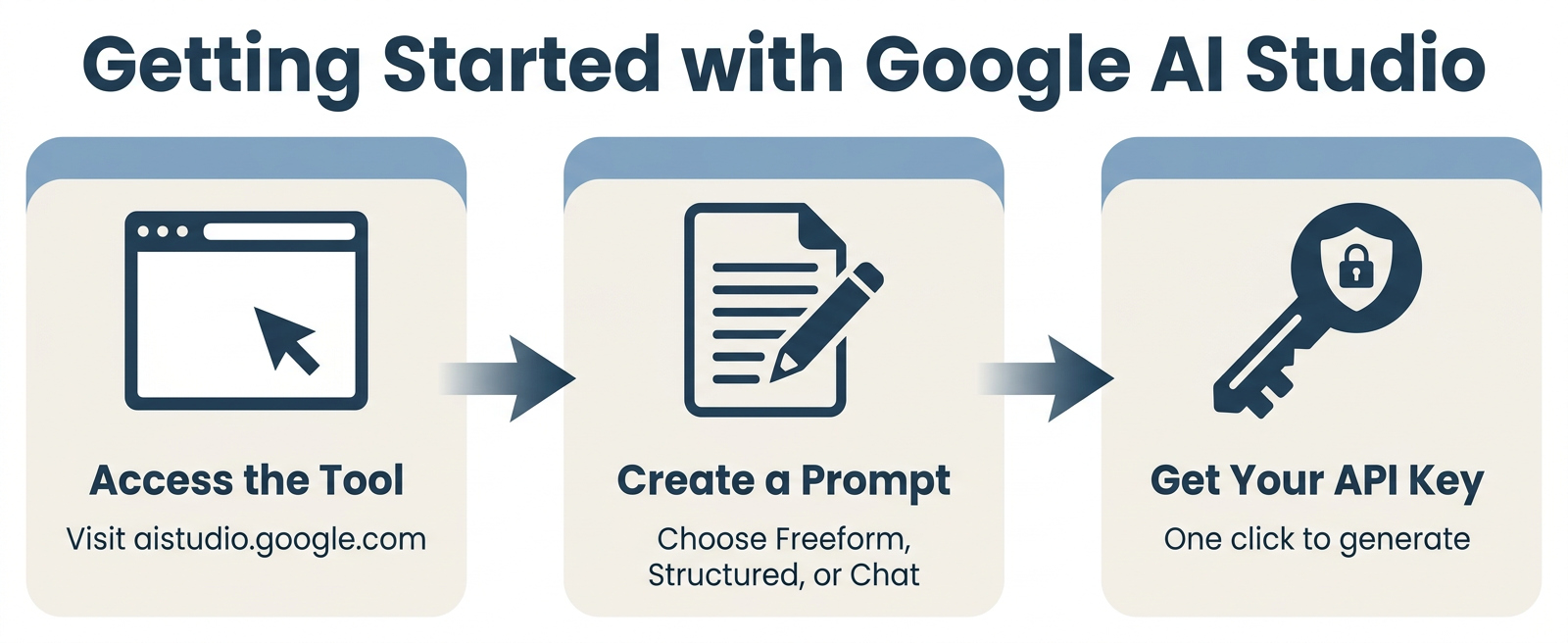
Google AI Studio is a free browser-based tool for building, testing, and refining prompts with Google's Gemini models. You don't need a cloud account or billing setup to begin. Just visit aistudio.google.com, sign in with a Google account, and you're ready to go.
Step 1: Access the Tool
Getting in is simple. Here's what to do:
- Open your browser and go to aistudio.google.com
- Sign in with any Google account (Gmail works fine)
- Accept the terms of service if it's your first visit
- You'll land on the main workspace right away
No downloads. No credit card. No complicated setup. It really is that fast.
Step 2: Create a New Prompt
Once you're inside, you'll see options for starting a new prompt. Google AI Studio gives you three main prompt types to choose from:
- Freeform: A blank canvas where you type anything and get a response. Great for open-ended tasks.
- Structured: Uses input and output examples to guide the model. Useful for consistent, formatted responses.
- Chat: A back-and-forth conversation format, just like messaging an AI assistant.
For your very first try, pick Freeform. It's the easiest to understand and the best place to start experimenting.
Step 3: Know Your Way Around the Interface
The Google AI Studio interface has three main areas you'll use constantly:
The Prompt Area sits in the center of the screen. This is where you type your instructions or questions. You can write a sentence, a paragraph, or even a full document brief here.
The Model Selection Dropdown sits near the top of the page. This lets you switch between available Gemini models. According to Google's official Gemini API changelog, the model lineup is updated regularly, with options ranging from faster Flash models to more capable Pro versions.
The Output Panel shows the model's response after you click Run. You'll see the text appear here in real time. You can copy it, refine your prompt, and run it again.
That's all there is to it. Three areas, and you're working with a real AI model.
Try Your First Prompt Right Now
Here's a simple prompt you can paste in to test things out:
"Explain what photosynthesis is in three sentences, as if you're talking to a 10-year-old."
Hit Run and watch the output panel fill in. Then try changing one word in the prompt and run it again. You'll start to see how small changes in wording shift the response.
That's the core loop of working in Google AI Studio. Write a prompt, read the output, adjust, and repeat.
Obtaining Your API Key
Once you're inside Google AI Studio, getting your API key takes less than a minute. Look for the Get API key button in the left sidebar or at the top of the interface. Click it, and you'll be taken to a key management page where you can create a new key.
Hit Create API key, and Google generates a unique string of characters for you. Copy it and store it somewhere safe. You won't be able to see the full key again after you leave that page.
So what's the key actually for? It's how your code proves to Google's servers that you're allowed to make requests. Every time your app calls a Gemini model, the key travels with that request as a kind of authentication pass.
Your key is generated through the Google AI for Developers platform, which also gives you tools to manage, restrict, or delete keys as your project grows. According to Google's official API key documentation, rate limits are applied per project rather than per individual key, so all keys in the same project share the same quota.
Once you have your key, you're ready to start making real API calls from your own code.
Exploring the Key Features of Google AI Studio
Google AI Studio gives you three prompt types, a set of model tuning controls, and one-click code export. These features cover everything you need to go from a rough idea to working API code without leaving your browser.
Three Ways to Build a Prompt
Every project in Google AI Studio starts with a prompt type. You pick the one that fits your task, and the interface adjusts to match.
Freeform prompts are the simplest. You type an instruction, the model responds, and you refine from there. This works well for one-off tasks like drafting text, answering questions, or generating ideas.
Structured prompts let you provide examples of input and output pairs. The model learns the pattern from your examples and applies it to new inputs. This is useful when you need consistent, formatted responses every time.
Chat prompts set up a back-and-forth conversation. The model remembers context from earlier messages in the session. This format is the right choice for building assistants or any experience where conversation history matters.
Tuning Model Parameters
Below the prompt area, you'll find a set of sliders and controls that shape how the model behaves. These aren't just knobs for power users. They make a real, noticeable difference in the output.
Temperature controls how creative or cautious the model is. A low value like 0.2 keeps responses focused and predictable. A higher value like 0.9 pushes the model toward more original, varied answers. For factual tasks, keep it low. For creative writing, turn it up.
Top-P works alongside temperature. It limits the pool of words the model considers at each step. A lower Top-P means the model sticks to high-confidence word choices. A higher Top-P opens up more options.
Top-K sets a hard limit on how many possible next words the model considers. A Top-K of 1 means the model always picks the single most likely word. Higher values allow more variety.
Safety settings let you adjust how the model handles potentially sensitive content across categories like harassment, hate speech, and explicit material. You can raise or lower the threshold for each category depending on your use case. According to Google's official content generation parameters documentation, these controls help developers balance helpfulness with responsible output.
Viewing and Exporting Code
This is one of the most useful features in Google AI Studio, and it's easy to miss at first.
Once your prompt is working the way you want it, click the Get code button. The interface immediately shows you working code in your choice of language: Python, JavaScript, or cURL. No writing from scratch. No guessing at syntax.
You can copy that code and drop it directly into your project. The snippet includes your prompt text, the model name, and the parameter settings you chose. It's a complete, ready-to-run starting point.
This is the bridge between experimenting in a browser and shipping something real. You refine the prompt until it performs well, then grab the generated code and build from there. That workflow saves a lot of time, especially early in a project.
Understanding the Gemini Models in Google AI Studio
Google AI Studio gives you access to several Gemini models, each built for different tasks. Some are fast and lightweight. Others are powerful and capable of handling complex work. Picking the right one makes a real difference in both quality and cost.
The Main Model Families
Gemini models come in a few different tiers. Here's a simple breakdown of what each one is designed for:
- Gemini Pro models are the most capable. They handle complex reasoning, long documents, and nuanced instructions well. Use these when accuracy and depth matter more than speed.
- Gemini Flash models are optimized for speed and efficiency. They respond faster and cost less to run. They're a great fit for chat applications, quick summaries, or any task where response time matters.
- Gemini Flash-Lite models are the lightest option. They're built for high-volume, lower-complexity tasks where you need lots of fast, cheap responses.
According to Google's official Gemini API models documentation, each model has its own context window size, capability level, and pricing tier. It's worth checking that page before you commit to one model for a project.
Text-Only vs. Multimodal Models
Not all Gemini models work with the same types of input. This is one of the most important things to understand when choosing a model.
Text-only models accept written prompts and return written responses. They're straightforward and work well for writing tasks, question answering, and summarization.
Multimodal models can process more than just text. You can send images, audio, video, and documents alongside your written prompt. The model reads all of it together and responds based on the full picture.
For example, a multimodal model can look at a photo and describe what's in it, or analyze a chart and explain the trend. That kind of input flexibility opens up a whole new range of use cases.
The Google AI for Developers long-context documentation notes that certain Gemini models support very large context windows, which means you can feed in entire documents, codebases, or long video transcripts in a single request.
Which Model Should You Pick?
Here's a simple guide to match common tasks with the right model type:
| Task | Recommended Model Type |
|---|---|
| Complex reasoning or analysis | Gemini Pro |
| Fast conversational chat | Gemini Flash |
| High-volume simple tasks | Gemini Flash-Lite |
| Image or video understanding | Multimodal Gemini model |
| Long documents or large files | Pro with large context window |
If you're just getting started, Flash models are a smart default. They're fast, capable enough for most tasks, and available on the free tier. You can always switch to a Pro model later when you need more power.
And don't overthink it at first. Google AI Studio makes it easy to swap models with a single click in the dropdown. Try one, test your prompt, then compare results with another model. You'll see the difference quickly.
Google AI Studio vs. Vertex AI: What's the Difference?
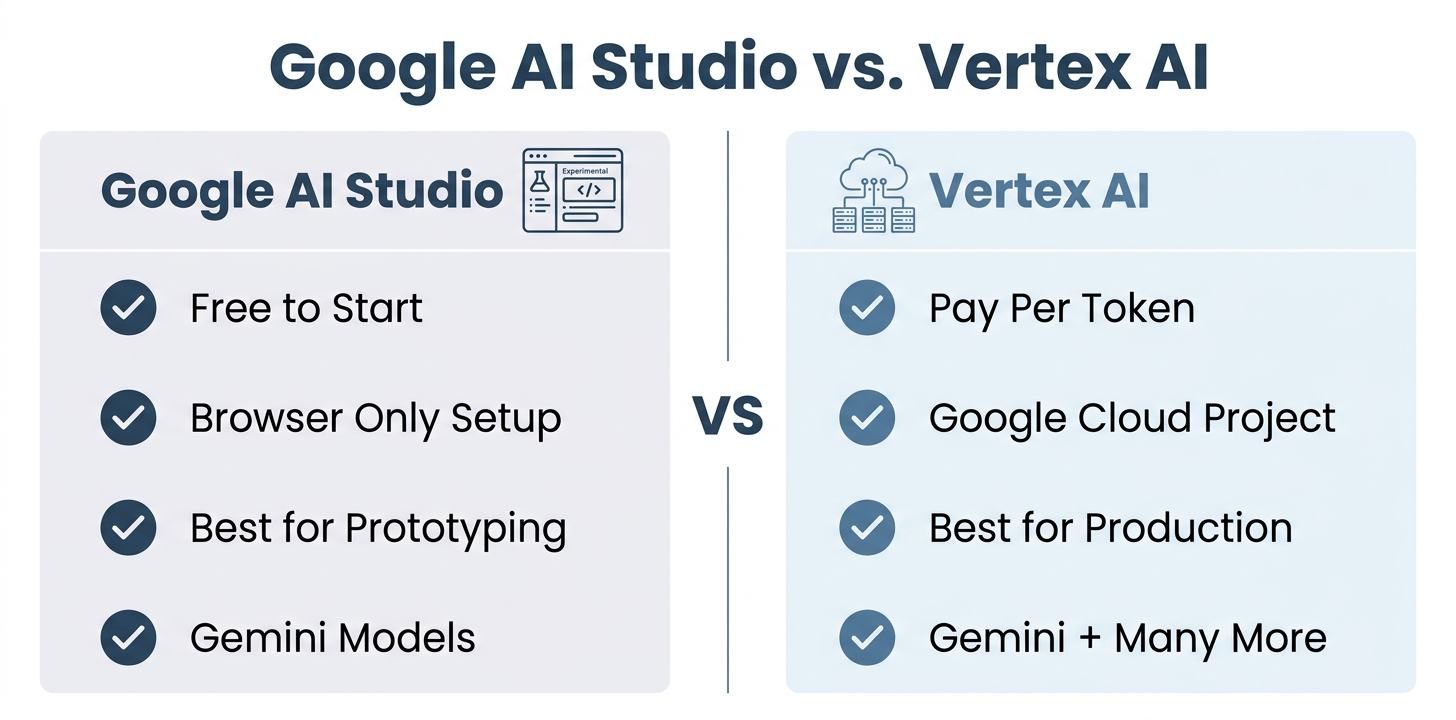
Google AI Studio is a free browser tool for prototyping with Gemini models. Vertex AI is Google's full cloud platform for building and deploying AI in production. Both let you work with Gemini, but they serve very different stages of a project.
AI Studio Is Built for Exploration
When you're testing ideas, writing prompts, and figuring out what a model can do, AI Studio is the right place. It's fast to access, free to start, and requires no cloud setup.
You can build a working prompt in minutes and export code right away. There's no billing configuration, no infrastructure to manage, and no steep learning curve.
But that simplicity comes with limits. AI Studio isn't built for shipping products at scale. It's a place to figure things out, not a place to run a production app.
Vertex AI Is Built for Production
Vertex AI is a fully managed machine learning platform inside Google Cloud. It's where teams go when they're ready to move past experimentation and start deploying real applications.
Some features that only exist in Vertex AI include:
- Enterprise-grade security: VPC Service Controls, Customer-Managed Encryption Keys, and compliance certifications
- MLOps tools: Pipelines, model monitoring, and experiment tracking to manage your full ML lifecycle
- Wider model access: Beyond Gemini, you can work with open models, fine-tuned versions, and models from third-party providers
- Guaranteed throughput: Provisioned capacity so your app doesn't slow down under load
- Data privacy guarantees: Your prompts and responses are never used to improve Google's models
According to Google Cloud's Vertex AI pricing overview, production workloads are billed per token plus compute costs for deployed endpoints. That's a big shift from the free tier in AI Studio.
The Natural Workflow: Start Here, Scale There
Think of AI Studio and Vertex AI as two stops on the same path.
You start in AI Studio to experiment cheaply and quickly. You write prompts, adjust parameters, and figure out exactly what you need the model to do. Once your prompt is dialed in, you export the code and move it into your app.
When your app is ready to handle real users, you move to Vertex AI. You swap out the API key auth for Google Cloud credentials, enable the Vertex AI APIs, and point your code at a cloud endpoint.
That move unlocks everything AI Studio can't offer: SLAs, compliance tools, and the infrastructure to serve thousands of requests reliably.
Here's a simple comparison to keep it clear:
| Feature | Google AI Studio | Vertex AI |
|---|---|---|
| Cost | Free to start | Pay per token + compute |
| Setup | Browser only | Google Cloud project |
| Best for | Prototyping and testing | Production deployments |
| Data privacy | May be used for training | Never used for training |
| MLOps tools | None | Pipelines, monitoring, tracking |
| Model options | Gemini models | Gemini plus many others |
If you're just starting out, don't worry about Vertex AI yet. Build and test in AI Studio first. You can always migrate later when your project actually needs it.
Practical Use Cases for Google AI Studio
Google AI Studio works for a surprisingly wide range of tasks. Whether you're a developer, marketer, student, or researcher, there's a good chance it can handle something you already do manually every day. Here are some of the most useful ways people put it to work.
Writing and Editing
One of the most common uses is generating and refining written content. You can draft blog posts, emails, product descriptions, and social media captions in seconds.
Try a prompt like this one: "Write a friendly email to a customer who just signed up for our newsletter. Keep it under 100 words and include a warm welcome and one tip for getting started."
You can also use it to rewrite existing text. Paste in a paragraph and ask the model to make it shorter, simpler, or more formal. It handles editing instructions well.
Summarizing Long Documents
Gemini models support very large context windows, which means you can paste in long articles, reports, or transcripts and ask for a summary.
A simple prompt like "Summarize this in five bullet points for a non-technical audience" works well. You get a clean, readable version of dense material in moments.
This is useful for research, meeting prep, or quickly understanding a document you don't have time to read in full.
Brainstorming and Idea Generation
Need to come up with product names, campaign angles, or blog topics? Google AI Studio is a fast brainstorming partner.
Try: "Give me 10 creative blog post ideas about productivity for remote workers. Make them specific and original."
Raising the temperature setting to around 0.8 or 0.9 pushes the model toward more unusual, creative suggestions. Lower it to 0.2 for more predictable, focused output.
Building Chatbots and Assistants
The Chat prompt type lets you set up a conversational experience. You write a system prompt that defines how the assistant should behave, and the model follows those instructions across the full conversation.
For example: "You are a friendly customer support agent for a software product. Answer questions clearly and briefly. If you don't know something, say so honestly."
Once your system prompt is dialed in, you export the code and drop it into your app. That's the whole workflow.
Analyzing Images and Visual Content
Multimodal Gemini models can read images as well as text. You upload an image and ask the model to describe it, extract information from it, or analyze what it shows.
Useful prompts include things like "What does this chart show? Explain the main trend in plain language" or "Describe what's in this photo in two sentences."
According to Google's official AI Studio case studies page, real projects have used this capability for everything from calorie tracking apps that analyze meal photos to marketing tools that generate copy from visual assets.
Structuring and Classifying Data
You can give the model a messy list or block of text and ask it to organize, label, or sort the information.
Try: "Here is a list of 20 customer feedback comments. Categorize each one as positive, negative, or neutral, and give a one-sentence reason."
This kind of task pairs well with the Structured prompt type, where you provide example inputs and outputs to guide the model toward a consistent format.
Quick Reference: Prompt Ideas by Task
| Task | Sample Prompt Starter |
|---|---|
| Summarize a document | "Summarize this in 5 bullet points for..." |
| Draft an email | "Write a short email to..." |
| Brainstorm ideas | "Give me 10 ideas for..." |
| Set up a chatbot | "You are a helpful assistant that..." |
| Analyze an image | "What does this image show?" |
| Classify data | "Categorize each item in this list as..." |
The best way to discover new use cases is to just try things. Google AI Studio costs nothing to experiment with, and you can run dozens of test prompts in the time it takes to read this article.
Content Generation and Summarization
Two of the most practical things you can do in Google AI Studio are generating written content and summarizing long material. Both tasks take just a few seconds once you have a prompt ready.
For content generation, try something like: "Write five social media captions for a coffee shop promoting its new seasonal menu. Keep each one under 20 words and make them feel warm and inviting." You get five ready-to-use options instantly.
Blog post outlines are just as easy. A prompt like "Create a detailed outline for a 1,500-word blog post about beginner home gardening tips" gives you a full structure you can build from right away.
Summarization works just as well. Paste a long article, meeting transcript, or research report directly into the prompt area. Then add a simple instruction like "Summarize this in five bullet points for a general audience."
The model reads everything you paste and returns a clean, readable version in moments. This is especially helpful when you need the key points from a dense document but don't have time to read the whole thing.
Building a Chatbot Prototype
The Chat prompt mode in Google AI Studio is the fastest way to build a working chatbot prototype. You write a system prompt that defines your assistant's persona, and the model follows those instructions throughout the entire conversation.
Start by clicking New prompt and selecting Chat. At the top of the chat window, you'll see a System instructions field. This is where you tell the model who it is and how it should behave.
A simple example: "You are a friendly support assistant for a small online bookstore. Answer questions clearly and briefly. If you don't know something, say so honestly."
Once your persona is set, start typing test questions in the chat window. Try things a real user might ask. See how the model responds. Does the tone feel right? Is it too formal or too casual?
If something feels off, go back and update the system instructions. Small changes in wording make a big difference. Phrases like "keep your answers under three sentences" or "always end with a follow-up question" shape the conversation style noticeably.
Keep testing with different questions until the responses feel natural and consistent. That's your prototype. When it's ready, hit Get code to export the whole setup into working code.
Real-World Example: Building a Chatbot Prototype
A startup founder wants to build a customer support chatbot without upfront infrastructure costs. Here's how they used Google AI Studio:1. Access: Opens aistudio.google.com, signs in with Gmail, and lands in the main workspace in seconds.2. Create Chat Prompt: Selects the Chat prompt type and writes system instructions: "You are a friendly support assistant for an online bookstore. Answer questions clearly and briefly. If you don't know something, say so honestly."3. Test & Refine: Types test questions like "How do I track my order?" and "What's your return policy?" Adjusts the system instructions based on responses until the tone feels right.4. Tune Parameters: Lowers Temperature to 0.3 to keep responses focused and consistent (important for support scenarios).5. Export & Deploy: Clicks "Get code" and receives Python code snippet with all settings included. Copies it directly into their Flask web app.6. Scale Later: As customer traffic grows, they migrate to Vertex AI by swapping API key authentication for Google Cloud credentials, enabling their app to handle thousands of concurrent conversations with guaranteed uptime and data privacy.
Advanced Prompting Techniques in Google AI Studio [Unique Angle]
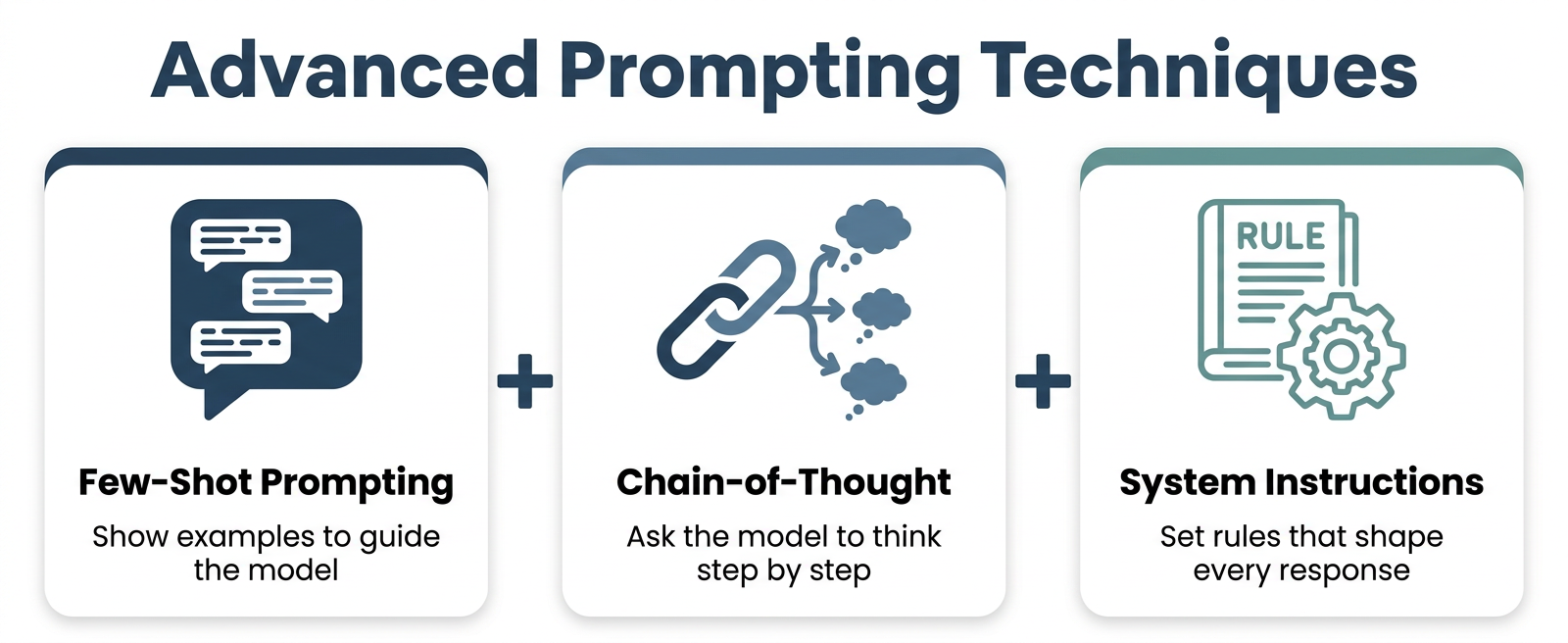
Getting better results in Google AI Studio often comes down to how you write your prompts, not just what you ask. Three techniques make the biggest difference: few-shot prompting, chain-of-thought prompting, and system instructions. Each one gives you more control over what the model produces. If you want to go deeper on the craft itself, our practical guide to mastering LLM prompting covers the patterns that carry across every model, not just Gemini.
Few-Shot Prompting: Show, Don't Just Tell
Few-shot prompting means giving the model examples of what you want before asking it to do the actual task. Instead of describing the format you need, you just show it.
Here's a simple example. Suppose you want the model to label customer feedback as positive or negative. Instead of explaining the rules, you do this:
- Input: "The shipping was fast and the product looks great." → Output: Positive
- Input: "It broke after one day. Very disappointing." → Output: Negative
- Input: "Your turn: 'The packaging was nice but it arrived late.'" → Output: ?
The model reads your examples and picks up the pattern. It then applies that same logic to the new input. According to IBM's overview of chain-of-thought and prompting methods, providing worked examples dramatically improves consistency across outputs, especially for classification and formatting tasks.
Few-shot prompting works especially well with the Structured prompt type in Google AI Studio, where you can add example input and output pairs directly in the interface.
Chain-of-Thought Prompting: Ask the Model to Think Out Loud
Some tasks need more than a quick answer. Math problems, multi-step logic, and anything requiring comparison all benefit from chain-of-thought (CoT) prompting.
The idea is simple: you tell the model to show its reasoning before giving a final answer. A prompt like "Think step by step" or "Explain your reasoning before answering" is often all it takes.
Here's why this matters. Without CoT, a model might rush to an answer and get it wrong. With CoT, it works through each step, which catches errors along the way.
For example:
- Without CoT prompt: "If a store has 48 apples and sells 3 bags of 6, how many are left?" → Model might just output: "30"
- With CoT prompt: Same question + "Think step by step" → Model writes: "3 bags × 6 apples = 18 apples sold. 48 − 18 = 30 apples left." → Answer: 30
The answer is the same, but the reasoning path is visible. And on harder problems, that visible reasoning is what catches mistakes. The Prompting Guide's CoT documentation confirms that this technique consistently improves performance on arithmetic, commonsense reasoning, and symbolic tasks.
System Instructions: Set the Rules Once, Apply Them Everywhere
System instructions let you define how the model behaves for an entire session. You write them once, and they shape every response that follows.
In Google AI Studio, you'll find the system instructions field at the top of the Chat prompt interface. This is separate from your regular prompt. Think of it as a rulebook you hand to the model before the conversation starts.
Good system instructions can define:
- Persona: "You are a friendly customer support agent for a small business."
- Tone rules: "Keep all responses under three sentences. Use plain language."
- Constraints: "Never give medical advice. If asked, suggest the user consult a professional."
- Output format: "Always respond in bullet points unless the user asks for a paragraph."
The difference between putting these rules in the prompt versus the system instructions field is consistency. A rule buried in the prompt can get "forgotten" over a long conversation. A system instruction sticks.
Combining all three techniques gives you real control. You use system instructions to set the persona and rules, few-shot examples to lock in the format, and chain-of-thought cues when the task needs careful reasoning. That combination gets you much closer to consistent, reliable output from day one.
From Prototype to Production: Next Steps After Google AI Studio [Unique Angle]
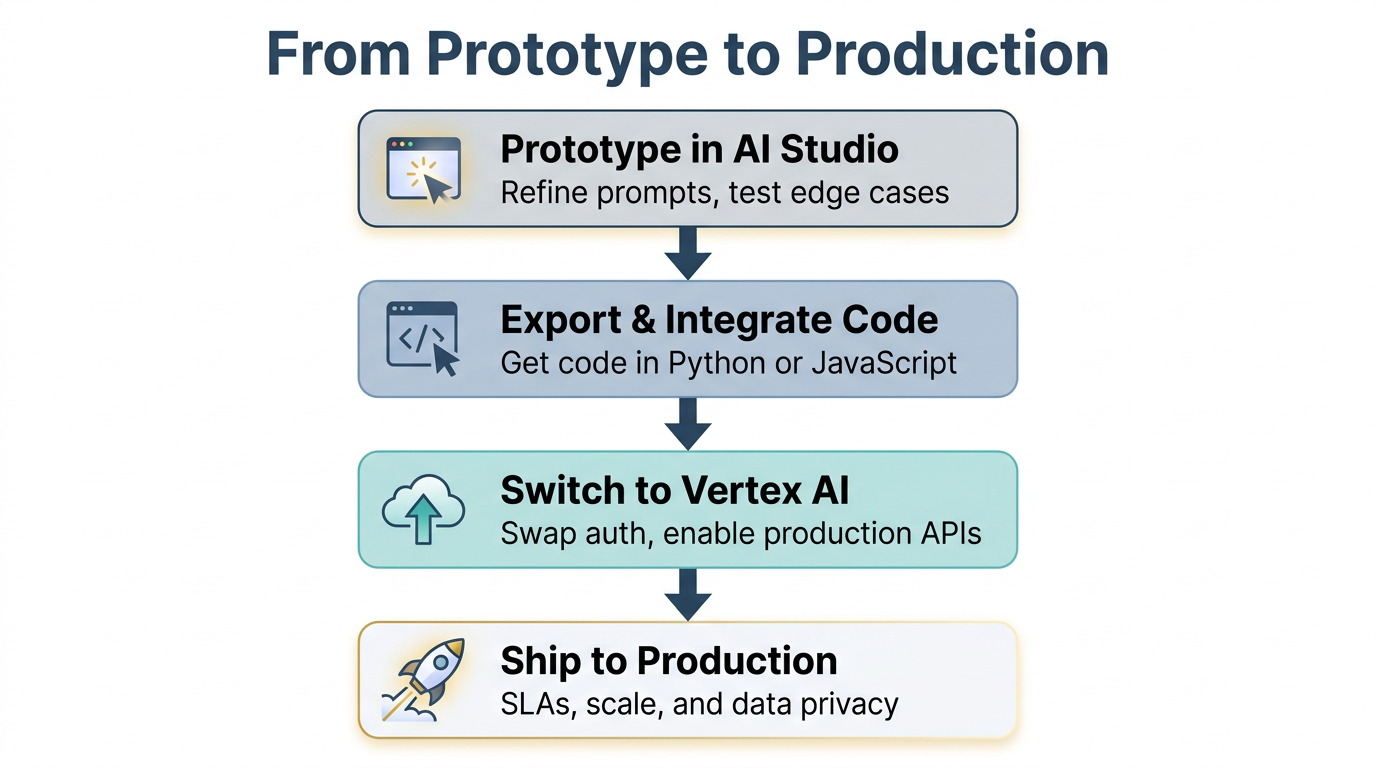
You've built a working prompt in Google AI Studio. Now what? Moving from a browser-based experiment to a real app takes a few clear steps. Here's the roadmap that takes you from prototype all the way to a production-ready deployment.
Step 1: Prototype and Refine in AI Studio
Before writing a single line of app code, get your prompt dialed in. Adjust the temperature, test edge cases, and try different phrasings. The goal is a prompt that performs consistently across varied inputs.
Don't rush this part. The more time you spend refining here, the less debugging you'll do later.
Step 2: Export Your Code and Integrate
Once your prompt is solid, click Get code in Google AI Studio. You'll get a working snippet in Python, JavaScript, or cURL. Copy it straight into your project.
At this stage, you're using an API key for authentication. That's fine for testing. But before you ship anything real, add proper error handling around your API calls. Networks fail, rate limits hit, and responses sometimes come back empty. Your code needs to handle all of that gracefully.
Google publishes official SDKs for this step. The Google AI Python SDK and other language SDKs are listed in the developer documentation, along with rate limit details you'll want to review before going live.
Step 3: Switch to a Vertex AI Endpoint for Production
When your app is ready for real users, it's time to move off the free API key and onto Vertex AI. This isn't complicated, but it does require a few deliberate changes.
The core shift is authentication. Instead of a simple API key, you'll use Google Cloud credentials tied to a project. You'll also enable the Vertex AI APIs in your Google Cloud console and update your client initialization to include a project ID and region.
Why bother? Because Vertex AI gives you things the free tier simply can't. Data privacy is a big one. According to Google's official Gemini API terms of service, prompts submitted to unpaid services may be used to improve Google's models. Activating Cloud Billing changes that. On paid services, your prompts and responses are not used for training.
Beyond privacy, you also get service level agreements, higher rate limits, and the option for provisioned throughput so your app doesn't slow down under load.
Production Considerations Worth Planning For
Three things catch most developers off guard when moving to production:
- Scalability: The free tier has strict per-minute limits. Vertex AI supports much higher throughput, but you need to plan your architecture to match expected request volume.
- Cost management: Vertex AI bills per token plus compute for deployed endpoints. Set up budget alerts in Google Cloud before traffic picks up. A pricing breakdown is available at Google Cloud's Gemini API pricing page.
- Region availability: Some models are only available in specific regions. Confirm that your target model works in your chosen deployment region before finalizing your setup.
The good news is that the code changes going from AI Studio to Vertex AI are smaller than most people expect. You're swapping auth methods and updating an initialization block. Your prompt logic stays the same.
Start cheap in AI Studio, ship confidently through Vertex AI. That's the path.
Is Google AI Studio the Right Tool for Your Next Project?
Google AI Studio is a free, browser-based tool for testing and building prompts with Google's Gemini models. It's designed for developers, students, and product managers who want to explore generative AI quickly, without any cloud setup or billing requirements.
If that sounds like you, it's worth trying right now.
Who Gets the Most Out of It
Google AI Studio works best for people who need to move fast. You can go from zero to a working prompt in under five minutes.
Developers use it to prototype features before writing app code. Students use it to explore how large language models respond to different inputs. Product managers use it to test ideas and generate content drafts without waiting on engineering support. Founders tend to ask a bigger question, where AI tooling like this fits inside a full growth engine, and that's worth answering before you scale anything.
It's a starting point, not a finished product. But it's a genuinely great one.
What Makes It Worth Using
Three things set Google AI Studio apart from other ways to access AI models:
- Speed: No setup, no cloud account, no credit card. You open a browser and start.
- Simplicity: The interface is clean. You write a prompt, click Run, and read the response.
- Free access to powerful models: You get Gemini Flash models at no cost, with no time limit.
According to Google AI for Developers' official regional availability documentation, the tool is accessible in more than 220 countries and territories, making it one of the most broadly available AI prototyping tools anywhere.
Ready to Try It?
Head over to aistudio.google.com, sign in with any Google account, and run your first prompt. The Getting Started section above walks you through every step if you need a guide.
The best way to know if Google AI Studio fits your project is to spend ten minutes using it. Most people find out quickly that it does.
Questions to Ask Before Choosing Google AI Studio
- Is your primary goal to rapidly prototype and test ideas, or do you need a production-ready system serving real users?
- Do you have sensitive or confidential data that should never be used to improve Google's models?
- Does your project require high-volume requests, guaranteed throughput, or enterprise compliance certifications?
- Are you comfortable with the free tier rate limits, or do you anticipate needing unlimited scale immediately?
- Will you need advanced MLOps capabilities like model monitoring, pipelines, and experiment tracking?
- Is your team already using Google Cloud, or would you prefer to avoid cloud infrastructure setup entirely?
Why a marketing company wrote a Google AI Studio guide. We're The Zulu Method, and we run marketing the same way this post treats AI Studio, by prototyping fast, testing in public, and keeping only what works. Most of the founders who read this are prototyping with Gemini and haven't hired a marketing leader yet.
If that's you, our GTM Foundation Pilot is $4,995 and it's credited in full if you retain us. You get your funnel torn down and ranked, positioning and messaging rebuilt, one asset shipped live, and a 90-day plan. If you'd rather read first, start with our guide to AI-native marketing services.

A: Yes, Google AI Studio is completely free to use. It operates on a generous free tier with rate limits (for example, requests per minute vary by model). This free tier is specifically designed for development and prototyping. When you're ready for production usage at scale, you should transition to the billable Vertex AI platform, which provides enterprise-grade security, higher throughput, and data privacy guarantees.
Q: How do I get an API key for Google AI Studio?A: Getting an API key is simple and takes less than a minute. Look for the "Get API key" button in the left sidebar or at the top of the Google AI Studio interface and click it. You'll be taken to a key management page where you can click "Create API key" to generate a unique authentication string. Store it safely. You won't be able to see the full key again after leaving that page. This key is how your code proves to Google's servers that you're authorized to make requests to the Gemini API.
Q: What is the difference between Google AI Studio and Vertex AI?A: Think of AI Studio as your free, rapid prototyping workshop and Vertex AI as your full-scale, enterprise-ready factory. Google AI Studio is designed for testing ideas quickly with zero setup. Just open a browser and start. Vertex AI is Google's full cloud platform for building and deploying AI applications in production, offering enterprise-grade security (VPC Service Controls, Customer-Managed Encryption Keys), MLOps tools, higher throughput, and data privacy guarantees where your prompts are never used for training.
Q: Can I use Google AI Studio for commercial projects?A: You can absolutely prototype commercial projects in AI Studio at no cost. However, for a live, production commercial application that serves real users, Google recommends moving to the Vertex AI platform. Vertex AI is specifically designed for the reliability, security, scalability, and compliance requirements that commercial services demand, including service level agreements and data privacy protections.
Q: What are the rate limits for the Google AI Studio free tier?A: Rate limits vary by model but generally range around 60 queries per minute for standard models like Gemini Flash. These limits are applied per project rather than per individual API key, so all keys in the same project share the same quota. For the most current and accurate rate limit information specific to your model and project, check the official Google documentation or the rate limits view in your AI Studio project dashboard.
Q: How does Google handle my data and prompts in AI Studio?A: Data from unpaid AI Studio usage may be used by Google to improve its products and machine learning models, though without personal identifiers. However, if you activate Cloud Billing, your usage becomes a Paid Service where Google explicitly states that prompts and responses are never used to improve its models. For sensitive, confidential, or personal information, you should activate Cloud Billing or use Vertex AI's enterprise-grade privacy guarantees to ensure your data is not used for training purposes.